Want to know what your social media efforts are actually doing? Google Analytics 4 (GA4) gives you the answer.
If you’re ready to step up your reporting, here’s your beginner’s guide to using GA4.
Key takeaways
- Google Analytics 4 (GA4) is an analytics platform that tracks traffic, user behavior, and conversions.
- It shows where your traffic comes from, so you can see which social platforms drive the most visits and conversions.
- With built-in conversion tracking, GA4 helps you connect your social media efforts to real business outcomes.
What is Google Analytics 4 (GA4)?
Google Analytics 4 (GA4) is a free analytics platform from Google that tracks how people interact with your website and apps. It helps you understand where your traffic comes from, what users do on your site, and how those actions connect to your business goals.
Unlike older versions of Google Analytics, GA4 tracks user activity as events (like clicks, page views, and conversions), giving you a more flexible and detailed view of the customer journey.
With GA4, you can track:
- Total traffic to your site and traffic sources (including social channels)
- Individual page traffic
- Number of leads converted and where those leads come from
- Whether your traffic comes from mobile apps or desktop
- The number of users interacting with your site across devices and time zones
When you add Google Analytics to your overall social media reporting strategy, you get even more insights into how social media works for your business.
By adding GA4 alongside your social media analytics, you can:
- Discover which social media platforms give you the most traffic
- Calculate the ROI of your social media campaigns
- See what content works best with each social media platform
- See how many sales conversions your business gets from social media
With this data, you’ll be able to get the most out of your social media campaigns, improve your marketing strategies in the future, and even use analytics to enhance your search engine optimization (SEO).
Plus, if you’re running an e-commerce site, you’ll love how GA4 helps track purchases and product performance, so you can fine-tune your user experience and website URL for better sales.
Bonus: Get a free social media analytics report template that shows you the most important metrics to track for each network.
Social media analytics tools can tell you what’s happening on each platform. But they don’t always show what happens after someone clicks.
That’s where Google Analytics 4 comes in. It helps you connect your social media efforts to real business impact, like website traffic, leads, and conversions.
Here are four key ways GA4 can level up your social media tracking, according to Hootsuite’s Former Social and Influencer Marketing Strategist, Eileen Kwok.
1. Track conversions
Tracking conversions can be tricky with social media analytics alone. GA4 fills that gap by showing how your content drives real actions, like downloads and sign-ups.
“Every week we aim to have at least 2-4 pieces of ‘conversion’ content going out,” says Kwok. “This ensures we are striking the right balance of reaching new customers while also nurturing our current follower base by providing value, whether through free resources or campaign launches.”
If you’re promoting things like content downloads or webinars, GA4 helps you track which posts are actually driving results. This is especially useful for small businesses looking to understand which content resonates most with their audience.
2. Understand your target audience
GA4 helps you understand what users do after they click on your social content, not just how they engage with it on-platform.
Sure, likes and comments are nice, but they’re only part of the story. If you have conversion goals, Google Analytics can show you what’s actually driving results.
“One thing a lot of social marketers overlook is just because a social post didn’t perform well with vanity metrics, doesn’t mean it didn’t convert!” says Kwok.
“We have countless examples of social posts that seemed like they fell flat with less than 100 likes, but when we looked at our GA dashboard, the same post brought in 50 content downloads.”
GA4 provides in-depth data on which posts drive your audience to click, convert, or take other valuable actions. This type of insight is crucial for optimizing your social media accounts and creating content that hits the right notes.
3. Check traffic sources
One of Google Analytics’ best features is being able to see exactly where your site traffic is coming from — whether that’s organic search, social media, or referrals.
This is helpful for understanding how your social efforts impact website performance. When you know which channels drive traffic, you can focus your content where it matters most.
For example, if the majority of content downloads are coming from LinkedIn, you can double down there. If Instagram brings in more sign-ups, you can build stronger CTAs into your posts.
You can also use real-time reports to see traffic patterns and adjust your posting schedule.
4. Prove social media ROI
One of the biggest challenges of social media marketing is proving ROI. GA4 helps you connect your social efforts directly to business outcomes.
For example, with acquisition reports, you can directly tie leads and conversions to specific social networks, proving the ROI of your social media content.
This is critical when speaking to leadership on the success of your social efforts, says Kwok.
“When it comes down to it, [leadership] cares the most about ROI,” she says. “With a Google Analytics dashboard, you can share the success of the conversions you’ve been able to bring to the organization.”
By setting up Google Analytics and leveraging its custom reports and visualization tools, you can optimize your social media strategy and demonstrate its value.
4 key metrics to track
As you analyze your social media performance in GA4, there are a few key metrics that matter most. They help you understand your audience, where they come from, how they engage with your site, and whether they take action.
Here are four essential GA4 metrics to track:
1. User attributes
User attribute data gives you insight into your website visitors. You can see how many people visited, where they’re located, and key demographics like gender and language.
For social media marketers, this helps you understand who clicked through from your social posts and landed on your site.
To find user-related metrics in Google Analytics, go to Reports, then scroll to User and click User attributes. From there, you’ll get an overview of key metrics like active users and audience demographics.

You can also dig deeper by clicking Demographic details or Audiences for more detailed insights.

2. Acquisition
Acquisition shows how people are finding your website. Google breaks this into user acquisition and traffic acquisition.
User acquisition tells you how many new users went to your site, while traffic acquisition tells you how many sessions there were.
Common acquisition sources include:
- Direct: People typing your URL directly into their browser
- Organic: Traffic from unpaid sources like search engines or social
- Paid: Traffic from ads on search or social
- Referral: Visitors coming from links on other websites
- Email: Traffic from email marketing campaigns
- AI: Traffic from generative AI tools like ChatGPT and Perplexity
To look at your user acquisition or traffic acquisition metrics in GA4, go to the Reports section. From there, your navigation path will depend on how your GA4 property was set up:
- If you see “Life cycle” (most common): Go to Life cycle > Acquisition, then select User acquisition or Traffic acquisition.
- If you see “Business objectives” (newer setup with goals selected): Go to Business objectives > Leads, then select User acquisition or Traffic acquisition.
This data is broken down by channel.

Traffic acquisition also breaks down the traffic by channel, but with a focus on sessions. You’ll see how many sessions, the engagement rate, and the number of events per session.

3. Engagement
Engagement metrics show how people interact with your website. There are a few metrics you can use to measure website engagement.
One is sessions, which tell you how long people stay on your site. A session starts when someone lands on your site and ends after 30 minutes of inactivity, according to Google.
You can also look at pages and screens. This metric shows which pages people are visiting and engaging with. Take a peek at this data if you’re driving traffic to a specific landing page or campaign from social.

4. Conversions
Conversions are one of the most important metrics to track in Google Analytics.
It’s important to note that Google updated its terminology in GA4. What used to be called “conversions” are now referred to as key events.
Key events are any actions you decide are important to your business, like scrolling 90% of a landing page or clicking a specific button. You can choose which actions to mark as key events based on your goals.
Conversions still exist, but they’re tied more closely to Google Ads. They track actions like purchases, sign-ups, or downloads across platforms.
“Any conversion metric is where a GA dashboard really shines,” says Kwok.
“Whether your goal is leading users to a landing page, downloading a report, signing up for a trial, or requesting a demo, all of this can be tracked in GA and provides insights on the type of content your audience resonates with.”
To learn more, Google breaks down the difference between conversions and key events here.
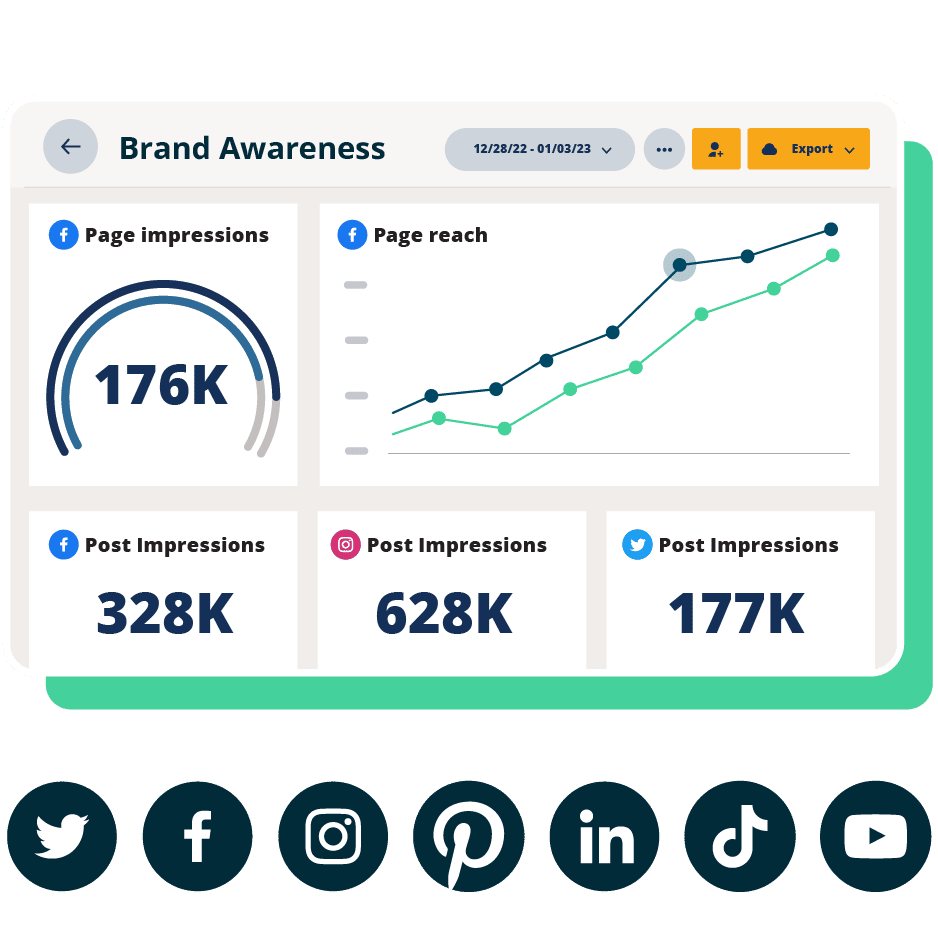
Beautiful reports. Clear data. Actionable insights to help you grow faster.
Start your free trialQuick note: Google Analytics 4 (GA4) is now the default option for all new Google Analytics users.
For this step-by-step guide, we’ll assume you already have an existing Google Analytics property and tracking ID.
Follow these steps to set up and use GA4 to track social media insights.
Step 1: Log in to Google Analytics
First, log into your Google Analytics dashboard.
Don’t have GA4 yet? It’s free and easy to set up. Follow this guide to sign up for your Google Analytics account.

Step 2: Choose your website
Once you’re logged in, select the website you want to track.
If you run in-house social for a brand, you’ll likely only see one option. If you’re a freelancer or at an agency, you may have multiple sites to choose from.

Step 3: Set up Google Tag Manager
Google Tag Manager lets you send data to Google Analytics without needing to code. It connects your site to tools like Google Ads and GA, so data flows between them.
Follow this guide from Google to set up your Google Tag.
To make sure everything’s working, go to Admin, then Data collection and modification > Data streams. Select your data stream, then under Google Tag, click Configure tag settings.
You should see a screen that looks like this:

Step 4: Use key events to track social media goals
In GA4, what used to be called “goals” are now key events, which track the actions that lead to conversions. Setting these up is essential for measuring your website’s key performance indicators.
Before you dive in, think about which metrics tie back to your social media goals and overall business objectives. (The SMART goal-setting framework can help here)
To set up the events you want to track, go to your Admin tab, then Data streams, and select the website you want to track.
Scroll down to Events and you’ll see what key events you’re currently tracking, like page views, scrolls, outbound clicks, or file downloads.

If you want to use this to track conversions from social media, don’t forget to set up UTM codes for all of your links. That way, you can connect specific actions back to specific campaigns and prove the impact of social.
Step 5: Connect GA4 to Hootsuite Analytics
Finally, to get the most out of your social media reporting, it’s a good idea to connect GA4 to your Hootsuite account.
This gives you clearer insights while you’re analyzing performance, saving time and helping you make smarter strategy decisions.
Check out this article for the full step-by-step guide to connecting your account.
Once connected, you can find your Google Analytics data in the following places:
- Advertising performance: Find out how your campaigns, ad sets, and ads drive website visits, page views, or other key events.
- High-impact content: Identify which organic posts are driving the most website visits, page views, or sessions.
- ROI analysis: See which organic pages and ad accounts are directing the most traffic to your website.
- Content comparisons: Compare campaigns to identify those that drove the most customers from social to your website.
- Reports: Create reports with both social and web analytics data to see the results of your social marketing efforts.
Pro tip 💡: Want more out of your reports? Hootsuite expands reporting functionality with integrations and plugins. Take a closer look here.
Google Analytics is a powerful tool for social media marketers. Here are four expert tips for using GA4 to monitor social media performance:
- Know what your goals are
- A/B test your content
- Keep an eye on audience feedback
- Embed it into your social reporting meetings
1. Know what your goals are
Start with clear goals that tie back to your overall social strategy — whether that’s building awareness, generating leads, or driving traffic.
Keep those goals in mind as you review your performance in Google Analytics. They give your data context and help you understand which posts, campaigns, and channels are actually moving the needle.
It’s also important that your team knows the goal behind each post.
As Kwok puts it, “Every social post has a different goal and purpose. While some were created for awareness, others were created to convert. Make sure to note that down so your team knows what metrics they should be monitoring.”
If you want to go deeper, you can use Google Search Console to track impressions and clicks from organic search. And don’t forget to check your Google Analytics report regularly to see which channels are delivering the best results.
2. A/B test your content
With GA4, you have the data you need to run A/B tests.
A/B testing (or split testing) means comparing two versions of something to see which performs better. On social, that could look like:
- Testing which post types have the best conversion rate
- Comparing channels to see which brings in the most traffic
- Trying different captions or landing page headlines to see what resonates
Google Analytics gives you a deeper view than social metrics alone. Take advantage of these detailed website insights to get the full picture of how your content is performing.
3. Keep an eye on audience feedback
If you’re running A/B tests, you also need to pay attention to how your audience responds.
Maybe a post didn’t get a ton of likes and comments on LinkedIn, but it drove double the amount of traffic as your average post does.
That kind of feedback shows how your audience behaves across channels and what actions they actually take. Use those insights to create more targeted, personalized content going forward.
4. Embed it into your social reporting meetings
Finally, make Google Analytics a regular part of your social media reporting.
Not only should you monitor social performance in GA4 on a weekly basis, but you should also embed the tool into your reporting meetings so everyone is on the same page.
“Our social team has weekly reporting meetings where we analyze the performance of our posts for the past week,” says Kwok.
“While engagement, reach, and other front-facing metrics are discussed, we care a lot about the conversations our social posts are able to drive, and that’s where Google Analytics comes in.”
FAQ: Google Analytics 4
How do businesses use Google Analytics to measure marketing performance?
How do you set up Google Analytics for tracking website and campaign data?
What are the most important Google Analytics metrics for marketers?
How do companies use Google Analytics to measure ROI across channels?
Google Analytics vs other analytics tools: which should businesses use?
Drive more traffic to your website from social media using Hootsuite. From a single dashboard you can manage all your social media profiles and measure success. Try it free today.