Think you know everything there is to know about social media’s veteran photo and video platform?
We can guarantee there are plenty of Instagram features and hacks you probably don’t know about yet that can sharpen your strategy (and reach) to the nines.
From audience engagement to content management, five marketers — including Hootsuite’s very own social team — are spilling 40 of their best practices and out-of-the-box hacks that can change the way you thrive on the ‘gram.
So, grab a snack and get ready to take notes.
Bonus: Download a free checklist that reveals the exact steps a fitness influencer used to grow from 0 to 600,000+ followers on Instagram with no budget and no expensive gear.
Profile optimization hacks
1. Add keywords to the name field
Social Media Consultant and Personal Brand Expert, Courtney Johnson’s tried and true Instagram profile optimization tactic is something she calls the “position power stack.”
“Don’t just be ‘John Smith’ — be ‘John Smith | Enterprise Sales Playbooks’,” Courtney says.

Source: @edgykatrina on Instagram
“By stacking your name with your specific niche, you turn your profile name itself into a searchable keyword.”
2. Add contact information
With an Instagram Business profile, having a visitor or follower reach out is as easy as the click of a button.

Source: @cafe_paperhill on Instagram
Literally. Making the switch lets you add your email address, phone number, and address — no additional character count required.
3. Pin an introduction post
Hootsuite’s Social and Influencer Marketing Strategist, Eileen Kwok, says one way to convert curious visitors into loyal followers is to rethink the way you use pinned posts.
“While most brands pin important social posts — like a recent campaign — to the top of their Instagram feed, treating pinned posts as the ‘introduction’ to your profile is an opportunity to take things a step further,” Eileen says.

Source: @chizobauwakwe on Instagram
It’s the perfect storm: putting a ‘face’ to your brand’s name, all while serving Instagram users the need-to-knows they’re looking for.
4. Include a call-to-action
A solid Instagram bio will drive followers to perform an action.
Whether it’s checking out your latest product drop or filling out a survey, this means including a clear and specific call-to-action (CTA).
You can also use Instagram’s Action Buttons to encourage even more profile clicks, like: Order food, Book now, Get quote, Reserve, View shop, or Learn more.
5. Use a link in bio tool
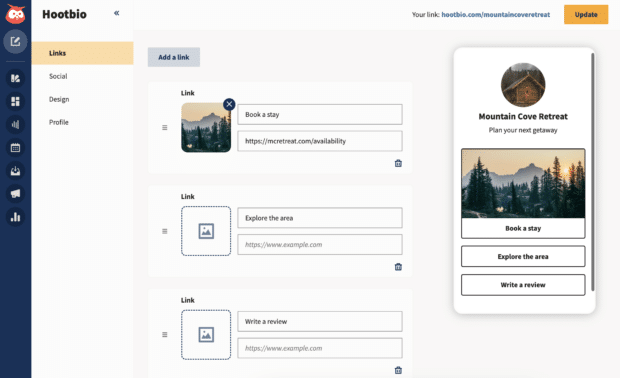
While Instagram now allows for up to five bio links, you can keep your most important pages clean and tidy with Hootbio.
This way, you can direct users to multiple destinations from a single link, without having to constantly update your Instagram.
Content creation hacks
6. Use an extraction framework
Planning a content calendar with enough posts to reach your goals can be a tough act — especially for teams of one.
When in doubt, point to Courtney’s “content nucleus” method.
“Record one 15-minute talking head video delivering your best advice. Then, extract 30+ pieces of content from this single ‘nucleus.’ This is content multiplication,” Courtney advises.
Here’s her extraction framework:
- 3-5 Instagram Reels (60 seconds each) from key points
- 8-10 quote cards from memorable one-liners
- 1 long-form carousel breaking down core concepts
- 4-6 story slides with quick tips
- 15-20 commentary captions for future posts
- 2-3 “preview” clips teasing full content
“Thank you, Courtney,” we all say in unison.
7. Appoint a dedicated content creator
Stan’s Creator Paid Partnerships Manager and Founder of Unserious, Qetsiyah Jacobson, says having dedicated content creators on your social media team is the Instagram content creation hack (if your budget allows it).
“You may think one social media manager will do, but the best social strategies and brands have a team,” Qetsiyah says.
“Stan has a dedicated editing team, creators, and social media managers running our Instagram account.”
8. Create an original series
While trending sounds have the juice, Qetsiyah notes “an influx of original series blowing up Instagram.”
And don’t fret, you don’t have to completely reinvent the wheel. “Take inspiration from Chloe Shih’s 30 lessons by 30 series or Grace Lemire’s ‘365 Her’ challenge,” Qetsiyah says.
Both offer a unique spin on niche topics, letting each creator stand out from the crowd and turn viral moments into lasting engagement.
Instagram Stories hacks
9. Record hands-free videos
Look, Ma! No hands!
From the Stories camera, tap the downward arrow on the right side of your screen to reveal the Hands-free recording option.

Source: Instagram
Then, tap the record button at the bottom of the screen to begin recording.
10. Import custom fonts
When it comes to fonts on Instagram, the limit — believe it or not — does not exist.
From a font tool like igfonts.io, type your message and select a font.
Copy it, paste it into your story, and voila. This works for bios and post captions, too!

Source: Instagram
11. Hide hashtags and mentions
Want to optimize your Story without the visually jarring text blurb in the bottom corner?
Try holding and dragging your hashtags and mentions until they “disappear” off-screen. And don’t worry, those tagged can still repost this beauty as usual!
12. Add custom stickers
Whether you want to spotlight a trending meme or remove the background from a photo, Insta’s custom stickers option is at your service.
Simply select Cutouts from the sticker tray to automatically sticker-ize your camera roll.

Source: Instagram
13. Schedule Stories in advance
A true no-brainer Instagram Stories hack? Scheduling them in advance!
You actually can’t schedule Stories directly in the Instagram app… but you very much can with Hootsuite.
How to do it: Check out our step-by-step guide to scheduling your Stories with the Hootsuite.

Instagram Reels hacks
14. Test your content with Trial Reels
Good news: You can now test the waters before officially setting sail on your next Reel with Trial Reels.
And Hootsuite’s Team Lead of Social Marketing, Trish Riswick, encourages brands far and wide to take advantage of the new tool.
“This is a great tactic for learning what visual or hook will work best for your audience, by testing on users that don’t currently engage with your content,” Trish says.
Try it for yourself! Take the usual steps to create a Reel, toggle on Trial, and voila.
15. Use Reels covers
An easy-to-navigate, visually aesthetic feed — that’s what Reels covers are for.
Take it from Courtney, who recently started uploading custom thumbnails because “it immediately shows my value when people come across my Instagram,” she says.

Source: @courtlynnjohnson on Instagram
“Instead of having to scroll through each video individually, they can easily glance at my page, see that I provide value, and click follow.”
16. Seek out trending sounds
Pro tip: trending Reels audios are marked by a tiny upwards arrow next to the sound name.
It’s an easy way to get your video content in front of the right people, and it only requires a quick scroll of the Reels tab.

Source: @goldengirlpacha on Instagram
17. Experiment with length
ICYMI: Reels can now be up to three minutes long.
While longer videos give you more room for storytelling, shorter videos may hold your audience’s attention spans. Experiment and see what sticks!
18. Schedule Reels
Schedule your Reels in advance and you never have to worry about missing a beat.
How to do it: This blog post has a full rundown of how to schedule Reels using Hootsuite, which is obviously our favourite tool.

Content sharing hacks
19. Get creative with carousels
In the words of DJ Casper, slide to the left — because Instagram carousels are all the rage in 2025.
“Carousels are a great way to provide even more value to your audience — especially to answer specific pain points and questions,” Qetsiyah says.
Eileen agrees. In fact, she says it’s worthwhile to experiment.
“We’re seeing more brands come out with disruptive carousel formats,” Eileen says.
“Instead of your classic introduction, body, and CTA — some are leveraging more slides with creative copy to get users to stay on their post for longer. It also makes scrolling through their carousel fun!”
20. Create line breaks in your caption
One of our favorite Instagram caption tricks is creating line breaks that let you take control over its pacing.
To create a paragraph break, write out your photo caption in your phone’s notes app and copy it over to Instagram. You can also use bullet points, dashes, or other punctuations to break up lines even further.
Instagram engagement hacks
21. Add “secrets” in the comments
A top tested Instagram engagement hack? Send people to the comments!
The trick here, Trish says, is to “film one video with a hook and instead of giving the information in the video, prompt people to read the comment.”
22. Turn comments into content
Speaking of comments, a must-do for Qetsiyah’s is to use the comment section as content.
“If a Reel does well and a specific comment can be turned into a video response, do it,” Qetsiyah says.
“People who see the original video will likely click on the follow-up video.” Plus, more eyes on your original video à la the new one.

Source: @juicylu.ce on Instagram
23. Have an active Instagram Broadcast Channel
According to The Folio Society’s Social Media Executive, Dayana Collazos Ibarra, “building a community rather than simply gaining new followers on social media will be key to growth” in 2025.
“An active broadcast channel can play a crucial role in fostering that sense of community, helping users feel connected to the brand while also enabling one-to-one interactions,” Dayana says.
24. Be proactive in the DMs
When someone direct messages you or your brand, Courtney says replying is the absolute least you can do.
“Send them a voice note asking about their biggest challenge in your niche. Then, create content specifically addressing those pain points and tag them when you post it,” Courtney advises.
Why? “This creates super-fans who engage with everything you share.”
Instagram growth hacks
25. Post UGC content
Engagement and conversions are good friends with user-generated content (UGC): original, brand-specific content created by social media users and published on social media or other channels.
Proof: 86% of consumers are more likely to trust a brand that shares UGC compared to 12% who are likely to purchase a product promoted by influencers.
Dayana’s advice? Sharing at least one piece of user-generated content each week.
“This simple practice not only helps your audience feel appreciated and valued, it encourages more customers to share content about your brand, increasing brand awareness and engagement,” Dayana says.
26. Don’t just post Reels
Although short-form video content dominates most social media platforms, Dayana says brands shouldn’t overlook other content types in 2025.
“Experimenting with different formats is key to discovering what resonates best with your audience,” Dayana says.
“Once you identify the content formats that work best for your brand, they can significantly contribute to your overall growth on Instagram.”
27. Embrace risky and experimental content
Tish top tip? Experiment with different concepts, even if they aren’t your favourite.
Because when Hootsuite’s social team rolled out our Social Trends 2025 report pre-launch content, the one they were iffy about performed best.
“We posted it on a Friday, which isn’t a typically high engagement date for us. Eileen and Paige also said it was a hard one to film too,” Tish explains.
“Well the video popped off. With 25K views, 680 likes, 750 comments,170 shares, and 194 saves, it was a top performer for us.”
The takeaway? “There isn’t a perfect science of what will land, so you need to be comfortable taking some creative chances,” Tish adds.
28. Add audio to carousels
You can add music to carousels now.
Why bother? Because they appear in the Reels tab for more reach!
29. Comment on creator posts
Brands commenting on popular creators’ Instagram posts is one of the big trends unearthed in our Social Trends 2025 report.
The proof: Brands who comment on others’ posts receive 60% higher engagement when the creator replies.
Instagram SEO hacks
30. Use keywords in captions
Your first step in delivering an effective Instagram SEO strategy is to understand what search terms people use to look for content like yours, then incorporate them in your captions.
And if you’re looking for a cheat code, Hootsuite’s free Instagram SEO tool lets you create SEO-optimized captions in a few clicks. You read that right.
31. Use relevant hashtags
It’s a tale as old as time: hashtags + Instagram = growth.
Instagram has shared some specific hashtag tips for showing up in the search results:
- Use only relevant hashtags.
- Use a combination of well-known, niche, and specific (think branded or campaign-based) hashtags.
- Limit hashtags to 3-5 per post.
- Don’t use irrelevant or overly generic hashtags like #ExplorePage.
32. Add alt text to your Instagram posts
Instagram’s alt text feature was designed to improve accessibility on the platform, but it can be used to improve your SEO too.
However, we recommend using keywords only when they fit naturally into your alt text to avoid keyword stuffing.
33. Track languages
In Trish’s opinion, your engagement boost may be a metaphorical plane ride away.
“Track what language is being used in other users’ content that overlaps with your brand,” Tish says.
“Then, start using the language in your content. That way, your new posts are more likely to appear after similar user content. It’s kinda like pairing up with other people.”
Instagram advertising hacks
34. Use reminder ads
Whether you’re launching a fresh product line or hosting your first-ever popup, Instagram reminder ads — according to Instagram — “get your event in front of more people and encourage them to engage when it matters.”
This means that when your target audience engages with this ad type, they can set a reminder from the ad itself to receive notifications before (and during) the event.
Learn how in this Instagram help article.
35. Autoboost organic posts with Hootsuite
PSA: you can let Hootsuite decide which Instagram posts to boost based on your average engagement rate, or set your own criteria.
You can trigger an Instagram boost post based on number of impressions, interactions, shares, and more.

How to do it: Set up an automated boost campaign on Instagram.
Instagram analytics hacks
36. Post at the best time
Instead of guessing when your audience is online, rely on hard data with Hootsuite’s best time to publish.
Hootsuite identifies when your audience is likely to see your content based on your Instagram analytics (and data from other social networks). Then, auto-schedule content at those prime times with one click.

In other words: experiment with posting days and times — or let Hootsuite handle it.
37. Regularly view analytics
Ask any seasoned social media marketer, and they’ll echo Dayana: “Regardless of Instagram algorithm changes, tips, or recommendations, the best way to determine what resonates with your audience is to regularly review your analytics.”
“Monitoring your performance on a weekly, monthly, and quarterly basis will provide valuable insights into what content drives engagement and maximises reach,” Dayana adds.
No notes!
38. Keep tabs on competitors
Great social media managers go beyond platform analytics. They track competing brands and relevant influencers, and monitor trending content to make smarter, data-driven calls that positively impact their bottom line.
Better social media managers use social listening to stay in-the-know automatically — and this Hootsuite blog has all the details.

Instagram management hacks
39. Use Hootsuite’s inbox tool
Juggling multiple inboxes across social platforms (or Instagram accounts)?
Use Hootsuite Inbox to manage all your messages stress-free with easy routing, saved replies, and friendly chatbots. Easy-peasy.
40. Schedule your posts in advance
When Instagram recommends you post at least 3-5 times a week — doing that on the fly, day after day, while still seeing high-performing results, is just not realistic.
With Hootsuite, you can easily plan your content calendar days, weeks, or even months in advance according to your account’s optimal posting time. Wins upon wins, friends.
So, which hack will you try out first?
Manage your entire social marketing strategy from one place — and grow your Instagram presence faster with Hootsuite. Schedule posts and Stories ahead of time, and monitor your efforts using our comprehensive suite of social media analytics tools. Try it free today.