Want to plan your TikToks ahead of time (and have them go live exactly when your audience is online)? Sounds like you need to learn how to schedule TikTok posts.
Below, you’ll find the easiest ways to schedule TikTok content on mobile, desktop, and with tools that do the heavy lifting for you.
Key takeaways
- TikTok Studio lets you schedule posts up to 10 days in advance on desktop only.
- As of 2026, you can’t schedule posts from TikTok’s mobile app. You will need to use a third-party tool like Hootsuite.
- Hootsuite lets you schedule further ahead, with added features like recommended posting times, a drag-and-drop content calendar, and cross-platform scheduling.
- To optimize your TikTok posting schedule, post when your audience is actually online, aim for 3–5 posts per week, account for time zones, and leave room to jump on trends in real time.
How do I schedule TikTok posts on desktop?
You can schedule TikTok posts up to 10 days in advance using TikTok Studio. You’ll need a Creator or Business account. You can also use Hootsuite to schedule further in advance, with added control over timing, approvals, and more.
Method 1: With TikTok Studio
Step 1: Log in to TikTok on your desktop.
Open TikTok.com in your browser and sign in. Click the Upload button at the top right of the screen.

Step 2: Upload your video
Click the Select File button to choose your video. It can be up to 10 minutes long and needs to be less than 10GB and 720-1280 resolution or higher.

Pro tip 💡: Bookmark this cheat sheet to image specs for every major social media platform, from TikTok to LinkedIn.
Step 3: Add a caption and adjust upload settings
Here, you can add a description, hashtags, mentions, and your own cover image. You can also select who can watch your TikTok video: everyone, just friends, or just you.
Need to run a copyright check? This is also the spot. Tap See More to pull up the content disclosure toggle and other advanced privacy settings.

Step 4: Choose your posting date and time (up to 10 days in advance)
Next, in the When to Post section, select Schedule and confirm by tapping Allow.

Choose your ideal date and time, then hit Schedule to lock it in. TikTok will auto-publish it at the time you select.
But if you want to peek at or edit your drafts later, head to Posts in the left-side menu.
Pro tip 💡: TikTok desktop scheduling is only available for Creator and Business account types. If you have a Personal account, switch for free in the TikTok app under Settings > Manage Account > Switch to Business Account.
Method 2: With Hootsuite
Hootsuite makes it easy to automate and schedule TikTok videos from your desktop (and plan way past TikTok’s 10-day limit).
Here’s how to publish TikTok videos using Hootsuite on desktop:
Step 1: Log in to Hootsuite on your computer
Make sure your TikTok account is connected to Hootsuite. (Here’s how to set that up!)
Then, click Create or Create a post to get started.

Use the Publish to menu to select your TikTok account.

Step 2: Upload your video and write your caption
Drag and drop your video into Hootsuite to upload it (you’ll see a preview pop up on the right). Quick reminder: TikTok’s ideal video size is 1080×1920.
Then, write your caption and add any tags or hashtags you want. (Psst: click the sparkles icon to get some writing help from OwlyWriter AI.)
Below the Content box, you’ve got some options to toggle on or off: Do you want to allow comments? How about Duets? Are Stitches welcome?
Your TikTok, your choice.

Try the no. 1 Instagram scheduling tool for free — no strings attached
Get started today and try Hootsuite completely free. Then sit back, relax, and watch your Insta stats skyrocket.
Step 3: Schedule your TikTok post
Once everything is perfect, tap the Schedule button.
You can choose your preferred posting date or tap See Recommended Times for personalized suggestions to help you publish at the right time.
(Yes, there are universal suggestions for the best time to post to TikTok, but your unique audience will impact the best time for you personally.)

Next, click the Schedule button, and it’s good to go!
If you have any changes you want to make before it goes live, just go to the Hootsuite Planner to view or edit your draft.

How do I schedule TikTok posts on mobile?
You can schedule TikTok posts on mobile using a third-party tool like Hootsuite. TikTok’s native scheduling is desktop-only, so a mobile app like Hootsuite is your best option.
Here’s how:
Step 1: Open the Hootsuite app on your phone
Log in to the Hootsuite app. Connect your TikTok account if you haven’t already. Tap Compose from the menu at the bottom of the screen.

Step 2: Upload your video and write your caption
Tap the plus (+) icon next to Select Social Account to choose your TikTok handle.
Next, tap the camera or photo icon to film a video or upload one from your camera roll.
Write your caption and include any relevant hashtags or mentions. You can also toggle comments, Duets, or Stitches on or off here.

Step 3: Autoschedule or custom-schedule your TikTok post
Tap Next (top right corner) when you’re ready to schedule, and a menu will pop up with some options:
- Autoschedule: Hootsuite picks the best time for you.
- Custom Schedule: You choose the exact date and time your video goes live.

Whatever you pick, tap Planner at the bottom of the screen to view your upcoming posts and edit or change the posting date or time if necessary.
How do I know my scheduled TikTok went live?
There are three ways to check that your scheduled TikTok post went live:
- Check your TikTok profile. Open TikTok on mobile or desktop and look for the video on your profile. If it’s public, it should appear like a normal published post.
- Check TikTok Studio. On desktop, go to TikTok Studio > Posts. Scheduled posts usually appear in a separate Scheduled tab. After the scheduled time, the post should move under the Posts tab.
- Review your posting history in Hootsuite’s Planner. Open the calendar view to see whether your post status has changed from scheduled to published.
If a post didn’t go live as expected, the most common culprits are a connectivity issue or content that triggered a policy review. Double-check your notifications for any alerts from TikTok.
How to schedule TikTok posts for any time
You can schedule TikTok posts for any time by using Hootsuite, which lets you plan content far in advance (unlike TikTok’s 10-day limit).
Simply log into Hootsuite, upload your TikTok, add the video details (e.g., caption and mentions), and select any future date on the calendar and tap Schedule. Yep, it’s really that easy.
Here’s everything you can do in Hootsuite, your all-in-one social media management tool:
- Schedule content for any date you want. Plan next week or next quarter with total flexibility.
- Build a full TikTok content calendar. Drag and drop posts in Planner to move things around, fill gaps, or smooth out your cadence.
- Batch-create and queue TikToks in one go. Upload multiple videos, write your captions, and schedule everything at once.
- Use recommended posting times for every future date. Hootsuite suggests the best times to post, making social media scheduling even smarter.
- Edit or reschedule posts anytime. Open any planned TikTok to tweak the caption, swap the video, or update the posting date.

Start growing your following on TikTok right now — for free
Try Hootsuite free for 14 days and see how it can help you skyrocket followers, reach, and engagement on TikTok.
How to optimize your TikTok posting schedule [tips]
To optimize your TikTok posting schedule:
- Post when your audience is online
- Create a TikTok content calendar
- Account for time zones
- Use past posts to inform your schedule
- Post 3–5 times per week
Let’s dive deeper into each of these tips below.
1. Post when your audience is online
It’s a common rule of thumb in social media marketing: schedule your posts for when your audience is most active.
Just like any social platform, there are good times to post on TikTok, bad times to post on TikTok, and the best times to post on TikTok.
The overall best time to post on TikTok is Thursday morning (6 – 9 am) and Saturday midday (10 am – 6 pm), our studies show.

Still, you’ll want to tweak your personal schedule to account for your specific audience’s behavior.
Get familiar with using analytics (Hootsuite’s Analytics tool is robust and user-friendly) to learn about your followers’ viewing habits and tailor your timing.
Pro tip 💡: Learn more about the best times to post on TikTok in our complete guide.
2. Create a TikTok content calendar
Content calendars help you plan your posts in advance so you won’t have to scramble to come up with ideas at the last minute.
To build a content calendar with TikTok ideas, you can use a ready-made template (like this one) or create your own using a spreadsheet or calendar app.
If you’re building your own content calendar, make sure each post includes the essentials:
- The date and platform
- Any KPIs you’re tracking
- Platform-specific details (Stories, Reels, Feed, etc.)
- A short description of the content
The more detailed your calendar is, the easier it will be to populate it with content.
3. Account for time zones
Schedule posts based on your audience’s local time, not yours.
If you schedule a TikTok for Tuesday morning, but most of your audience lives halfway around the world, your video might be hours old by the time they check their phones.
Head to your analytics (either in TikTok or Hootsuite Analytics) to understand when your audience is really online. Both of these tools show you when your audience is actually online, no matter what time zone they’re in.
To access TikTok’s analytics, go to the menu (top right corner) and tap Business Suite or Creator Tools, and then Analytics.
Here, you can learn about your audience’s behavior and see the views, likes, and other metrics your videos have received during different hours of the day.

4. Use past posts to inform your schedule
Your past posts are one of the best clues for building a smarter schedule. Take a peek at your best-performing posts to see when they were published. Chances are, your audience is more active at those times.
You can use TikTok Analytics to see how individual posts are performing. This includes data on views, likes, comments, and posting times.
Go to the menu and select Business Suite or Creator Tools, then Analytics. From the top menu bar, choose Content and click individual posts to see how they performed.
Check out our guide to TikTok analytics to learn how to analyze your TikTok performance.
5. Post on TikTok 3–5 times per week
TikTok recommends posting 1-4 times per day, but that may not be realistic for your brand. If you’re just getting started, try 3-5 times per week.
The TikTok algorithm can be tricky, but the more consistently you post, the more likely you are to get in front of a larger audience. And that’s where you’ll see what works well.
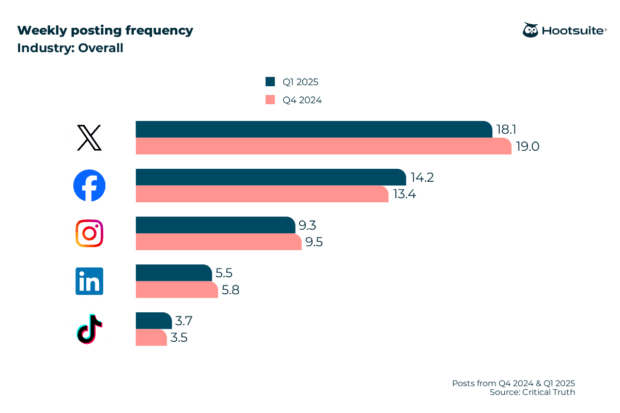
In fact, our research shows that most businesses post on TikTok between 3 and 4 times per week.
Post several times per week so that you’re regularly in front of your followers, and track engagement, views, and retention time for each video to understand just how effective it is.
The great news is that scheduling tools — whether Hootsuite or TikTok’s native scheduling feature — make it easy to post consistently.
But don’t post for the sake of posting
Now that you have a TikTok scheduler, you may be tempted to schedule large swaths of content all at once. But don’t forget that authenticity is key on TikTok.
Businesses succeeding on TikTok create authentic content that closely aligns with the community and the native TikTok experience.
One way to make sure your videos are top-notch is to keep an eye on the trends – especially trending sounds, formats, and effects. Pay attention to what’s popular on TikTok at the moment, and take advantage of platform-specific features like Duets, Stitches, and music.
That way, when new users discover your content, they’ll be more likely to stick around and engage.
Ready to launch your business into the TikTok marketplace? Check out our guide to using TikTok for business here.
FAQ: How to schedule TikTok posts
How do businesses schedule posts for TikTok?
What tools allow brands to schedule TikTok posts in advance?
Can I schedule TikTok posts from my mobile device?
How do enterprises manage TikTok scheduling across teams and campaigns?
What are the best practices for scheduling TikTok content for engagement?
TikTok scheduling vs. real-time posting: which strategy works best?
Looking for a TikTok scheduling tool? Grow and streamline your TikTok presence alongside your other social media platforms using Hootsuite. Schedule and publish posts for the best times, engage your audience, and measure performance — all from one dashboard. Try it free today.